
This guide is designed to help you import Whitelists into GuardREC® Compliance from a CSV file.
This functionality can be particularly useful when you have a large number of contacts to add to your whitelists, allowing you to avoid manual data entry.
Prepare Your CSV File
-
Phone numbers must be prefixed with an international calling code (e.g., +44 for UK). If not, the system-defined default will be prepended.
-
Please make certain to avoid including duplicate phone numbers when preparing your CSV file for import. GuardREC® Compliance system cannot process files with duplicate numbers or numbers already added to your whitelist.
-
Download the Whitelist Template.
-
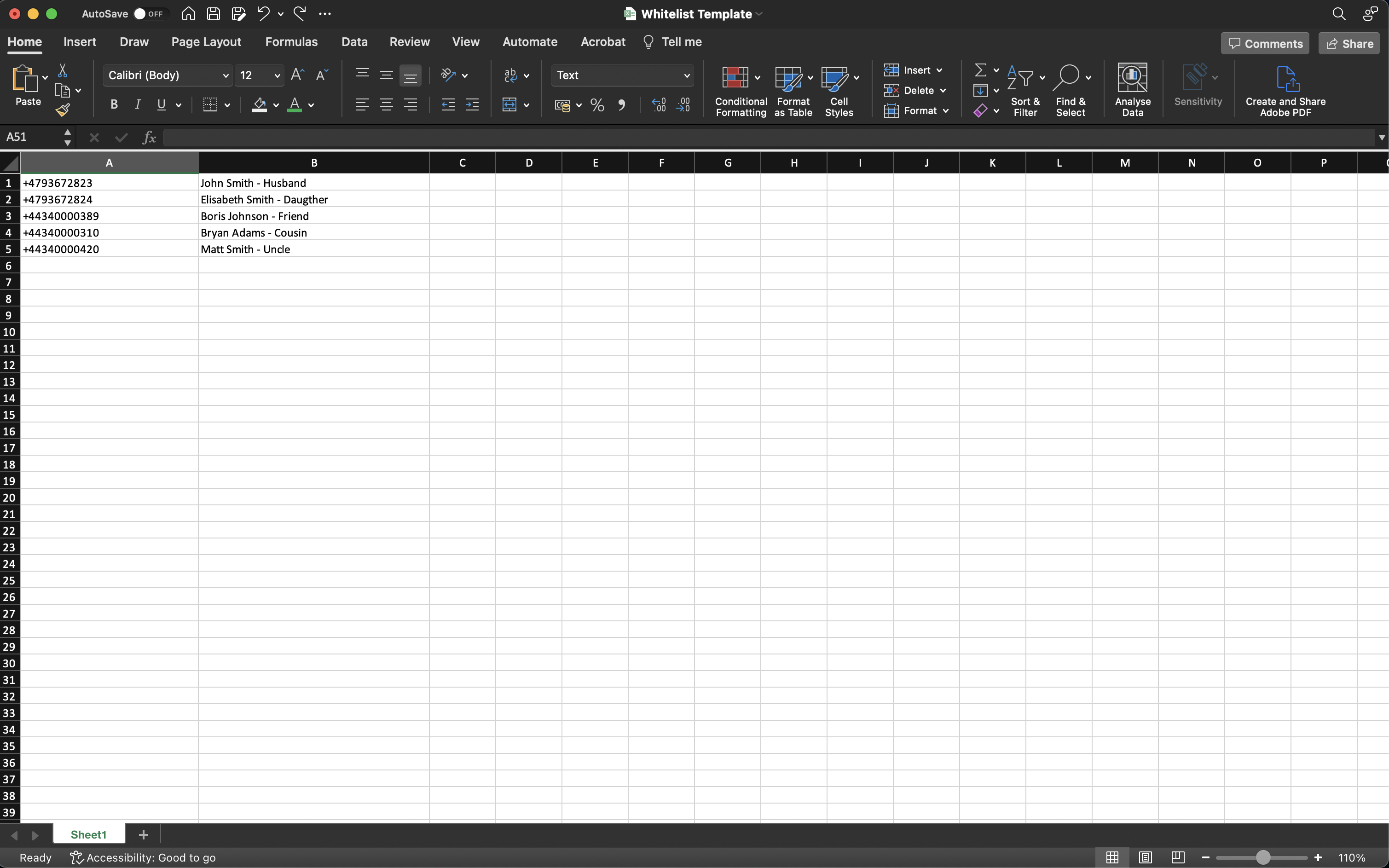
Enter the contact’s phone number in Column A. (Ensure cells in Column A are formated as ‘Text’).
-
Enter the contact’s name and relation in Column B.
-
Repeat Steps 2 and 3 for all contacts that should be added to your whitelist in GuardREC® Compliance.
-
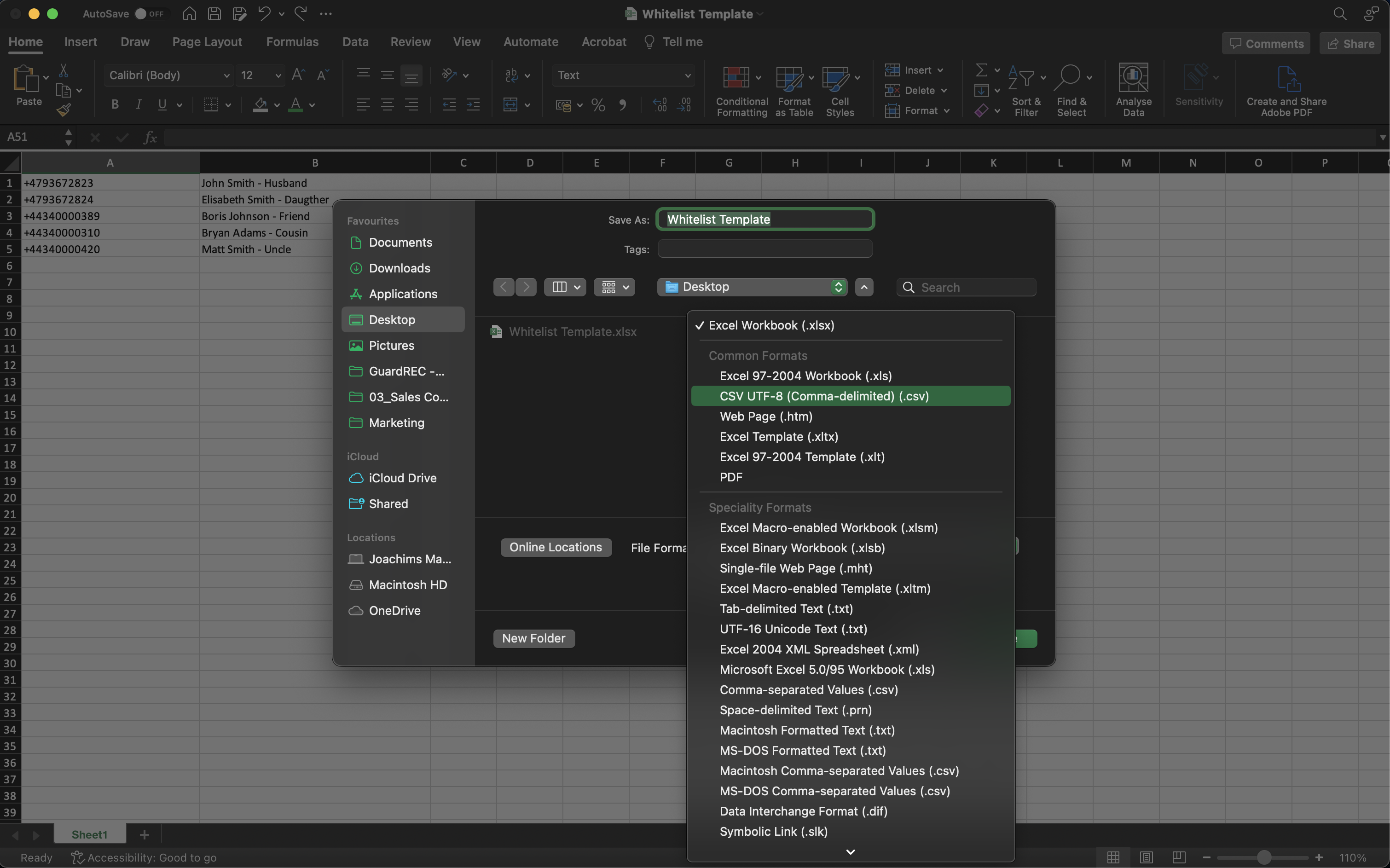
When done, Save the Excel sheet in CSV UTF-8 format.
Import your CSV File
Start by logging in to GuardREC® Compliance.
-
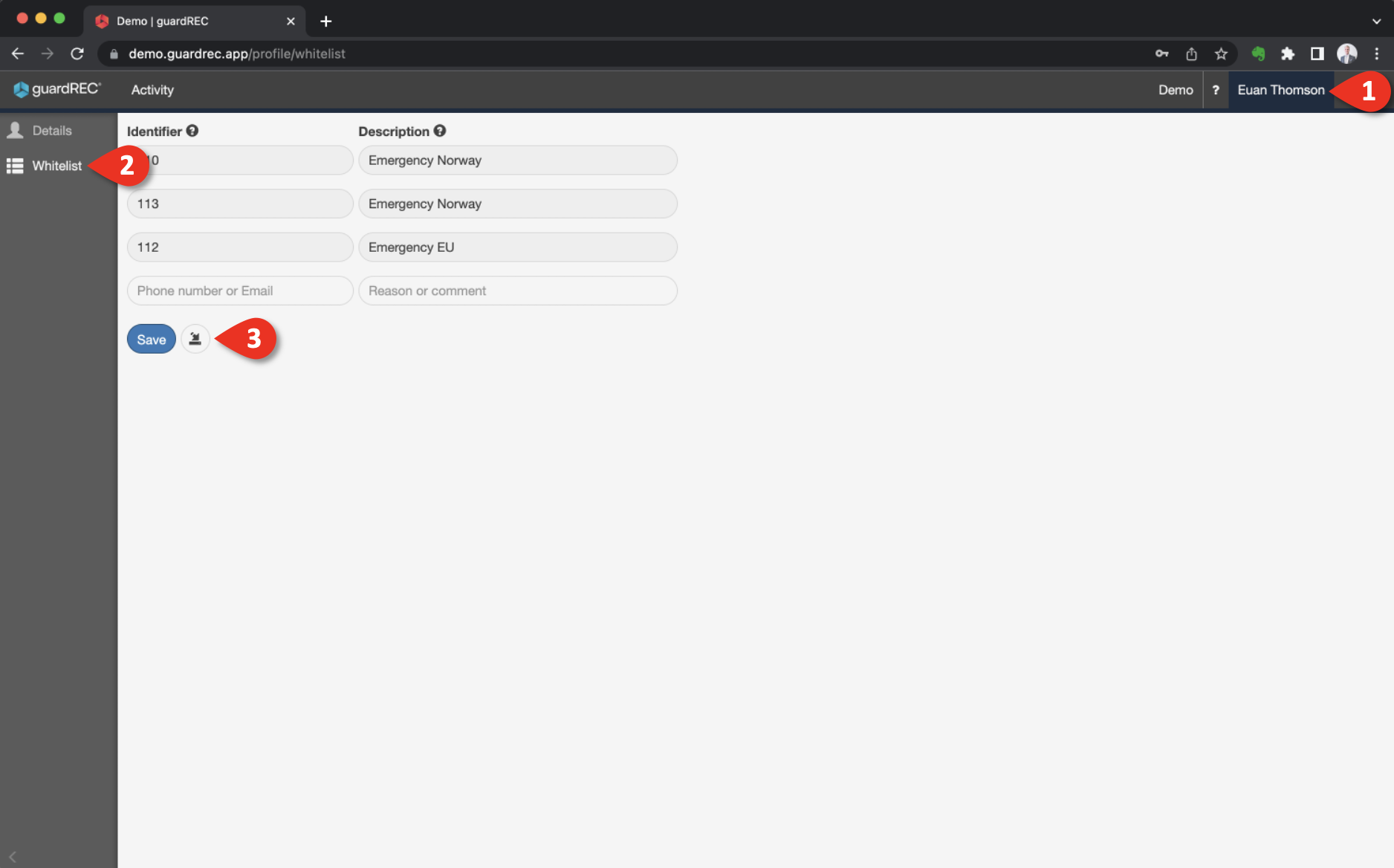
Click on your username in the top right corner of the application.
-
Go to Whitelist in the left sidebar.
-
Click the Import from CSV button.
-
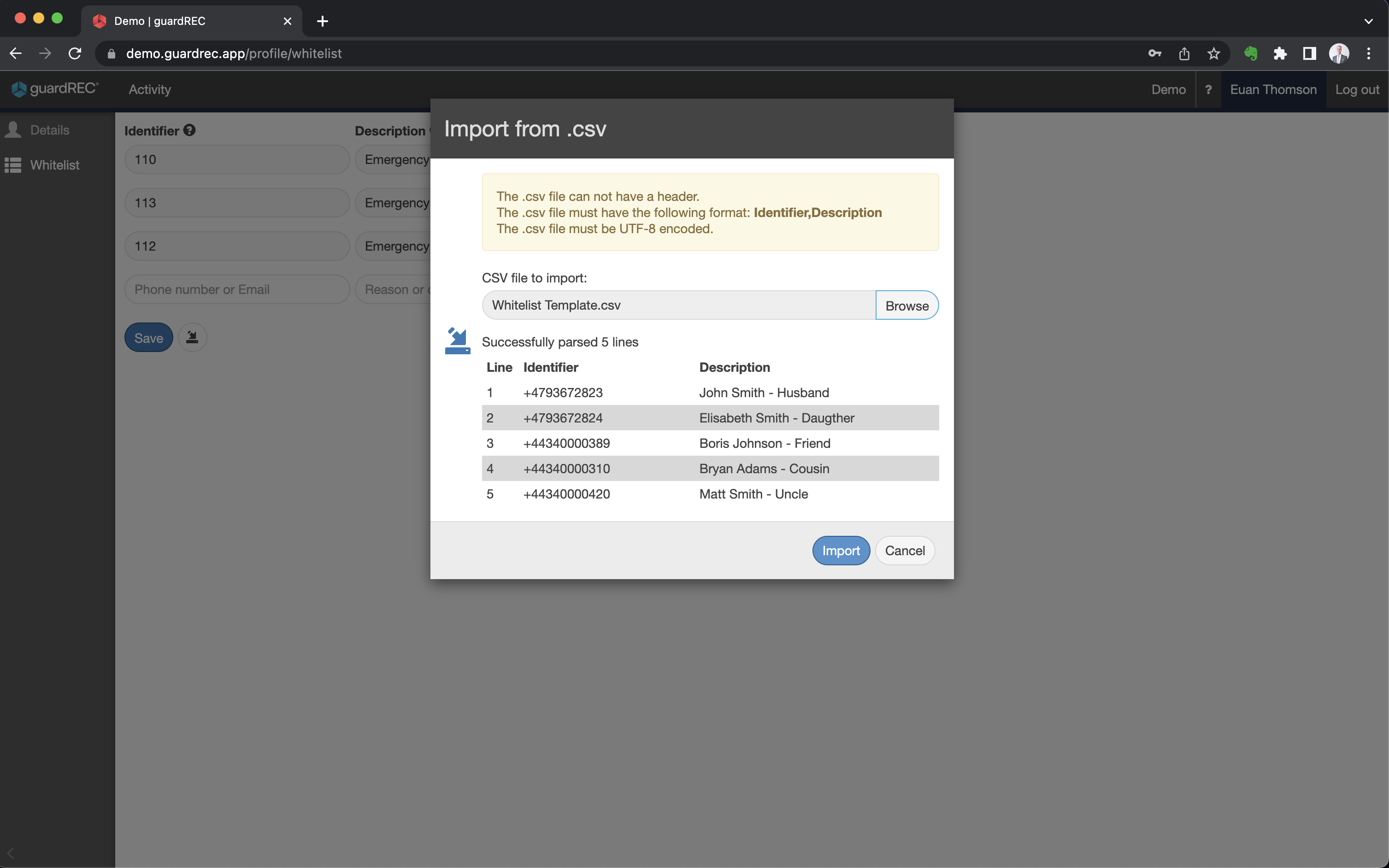
Click Browse to locate your CSV file and then click Import.
-
Click Save.
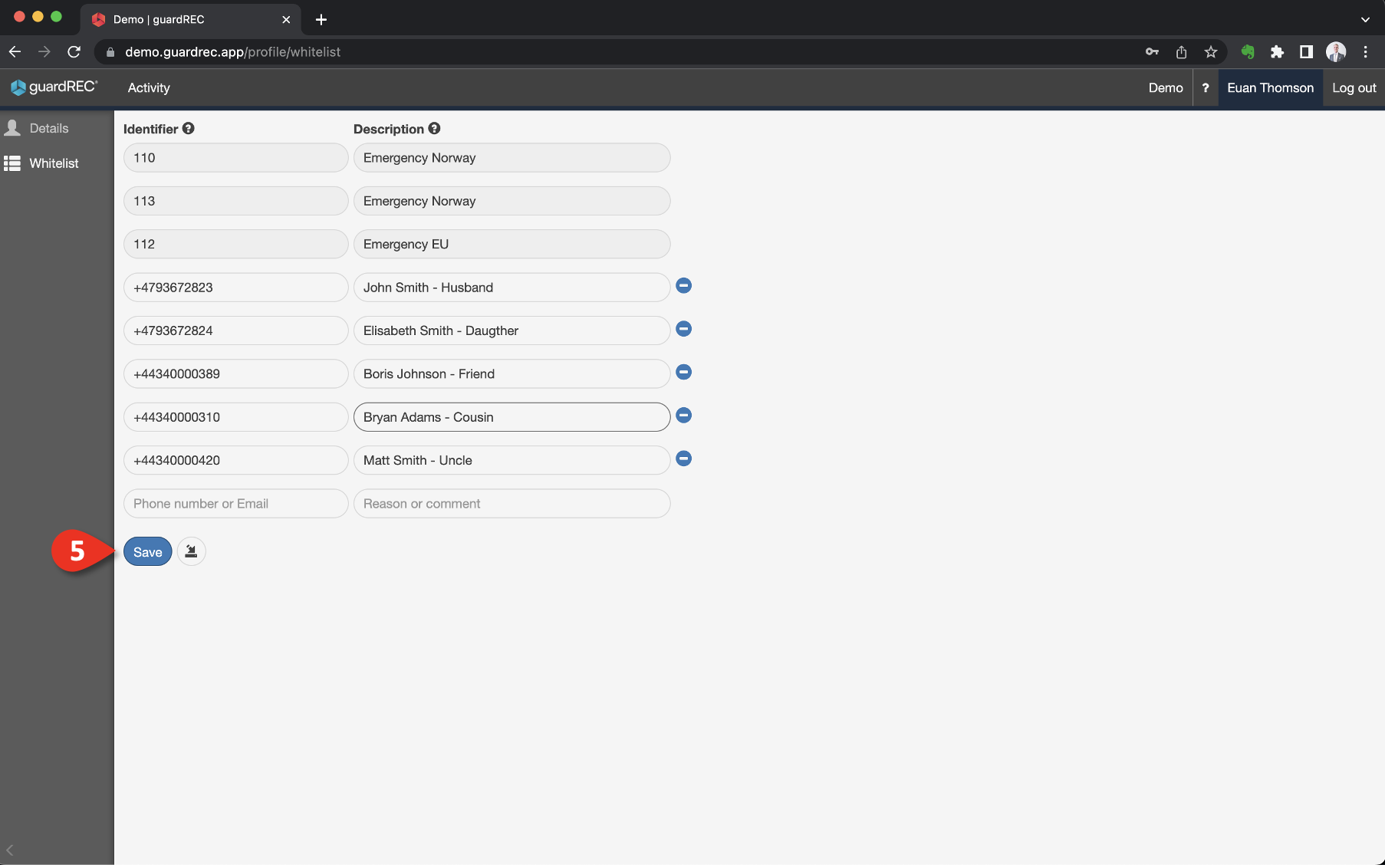
Once you have successfully added contacts to your whitelist, conversations with these individuals will no longer be recorded, ensuring their communication privacy.